
Transform your email productivity by connecting Gmail account to your self-hosted n8n instance. With 2.5 billion active Gmail users worldwide and 121 billion emails processed daily, automation has become essential for managing the overwhelming volume of digital communication. This comprehensive guide will show you how to harness the power of n8n to automate your Gmail workflows and reclaim hours of your day.
With users spending an average of 28 minutes daily managing their Gmail inbox and each visit lasting 12 minutes, the need for automation becomes clear. Manual email management is not just time-consuming, it’s a productivity killer that prevents you from focusing on high-value work.
What You Can Achieve by Connecting Gmail to n8n
Time-Saving Automation Capabilities
Connecting Gmail to n8n unlocks powerful automation possibilities that can dramatically reduce your email workload:
Email Management Automation:
- Automatically sort incoming emails into specific folders based on sender, subject, or content
- Apply labels and organize messages without manual intervention
- Archive or delete emails based on predefined criteria
- Set up intelligent auto-responses for common inquiries
Business Process Integration:
- Convert emails into tasks in project management tools like Trello or Asana
- Automatically log customer emails in your CRM system
- Extract data from emails and populate spreadsheets automatically
- Trigger notifications in Slack or Teams when important emails arrive
Advanced Workflow Automation:
- Send follow-up emails based on customer actions or time delays
- Create multi-step email sequences for lead nurturing
- Integrate with 400+ other applications through n8n’s extensive library
- Build AI-powered email processing workflows using OpenAI or other AI services
Real-World Benefits and ROI
The impact of Gmail automation using n8n extends far beyond time savings:
- Error Reduction: Eliminate human errors in email handling and data entry
- Improved Response Times: Faster customer service leads to better client relationships
- Lead Generation: Automate outreach campaigns to generate more leads
- Cost Efficiency: n8n’s pricing model charges per workflow execution, not per task, making it significantly more affordable than alternatives
Measurable Productivity Gains
Organizations implementing Gmail automation typically see:
- 42% average ROI on email marketing campaigns
- 28% improvement in campaign success through A/B testing
- Significant reduction in time spent on repetitive email tasks
- Enhanced team collaboration through integrated workflows
Prerequisites & Preparation For Gmail Integration in n8n
Before diving into the integration process, ensure you have:
- An active self-hosted n8n instance
- Google account and basic familiarity with Google Cloud Console console for APIs access
- Administrative access to both n8n and your Google account
Step 1: Create a Google Cloud Project
Navigate to the Google Cloud Console and establish a dedicated project for your n8n integration. Click the project dropdown in the top navigation, select “New Project,” and give it a descriptive name like “n8n Gmail Integration.” Ensure this project is selected as your active workspace before proceeding.
Step 2: Enable the Gmail API
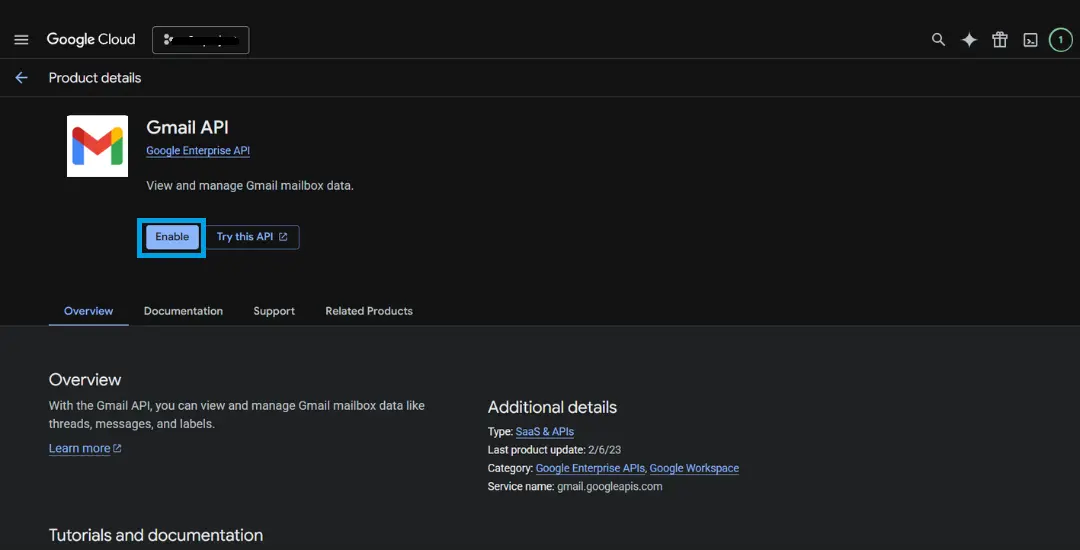
Access the API Library within your Google Cloud project and search for “Gmail API.” Click on the Gmail API result and select “Enable” to activate it for your project. This step is crucial as it grants your n8n workflows the necessary permissions to interact with Gmail’s services.
Step 3: Configure / Set up OAuth Consent Screen
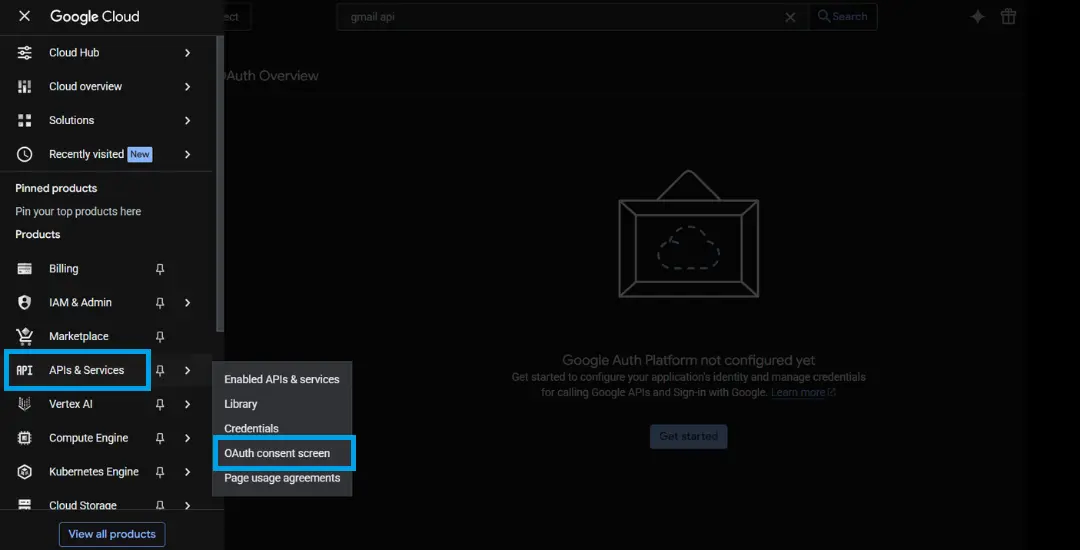
In the left-hand navigation menu, click on “OAuth Consent Screen.”
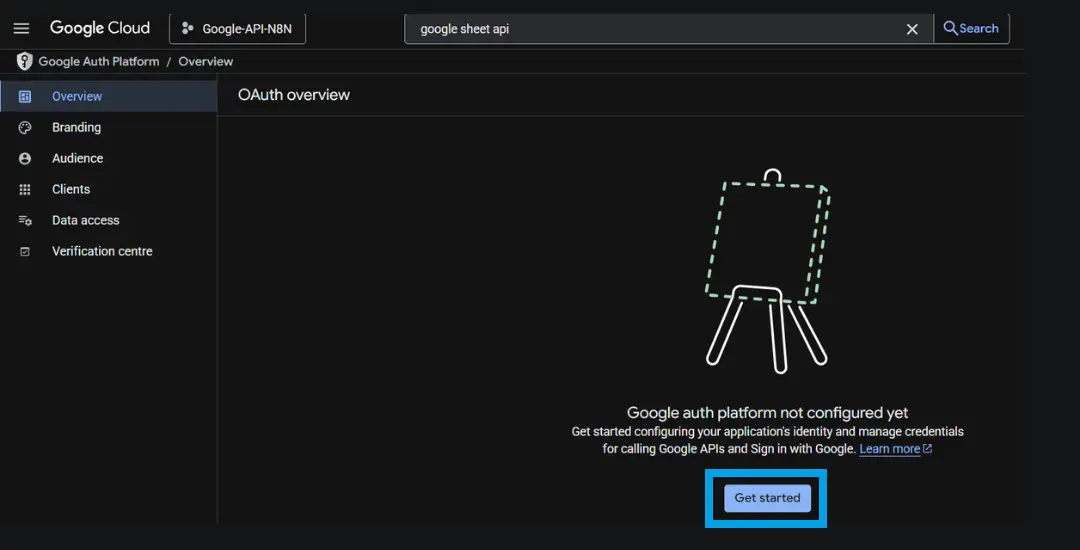
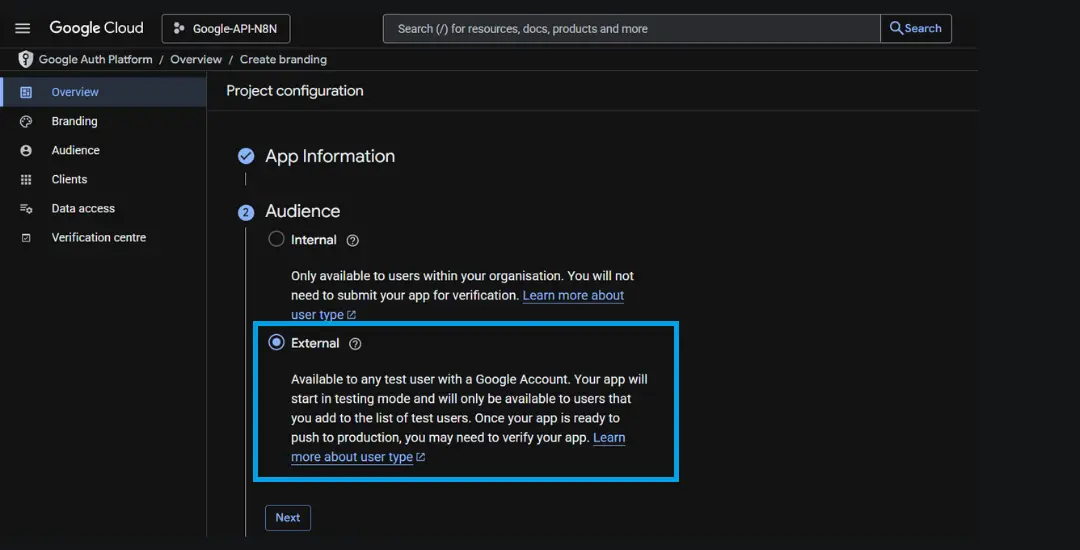
Choose “Get Started” to continue OAuth setup.
Choose “External” for user type, this is required for personal Google accounts and is suitable if you are only granting access to your own email. Enter your email for “Contact Information” – “Next” – agree to terms and “Create”.
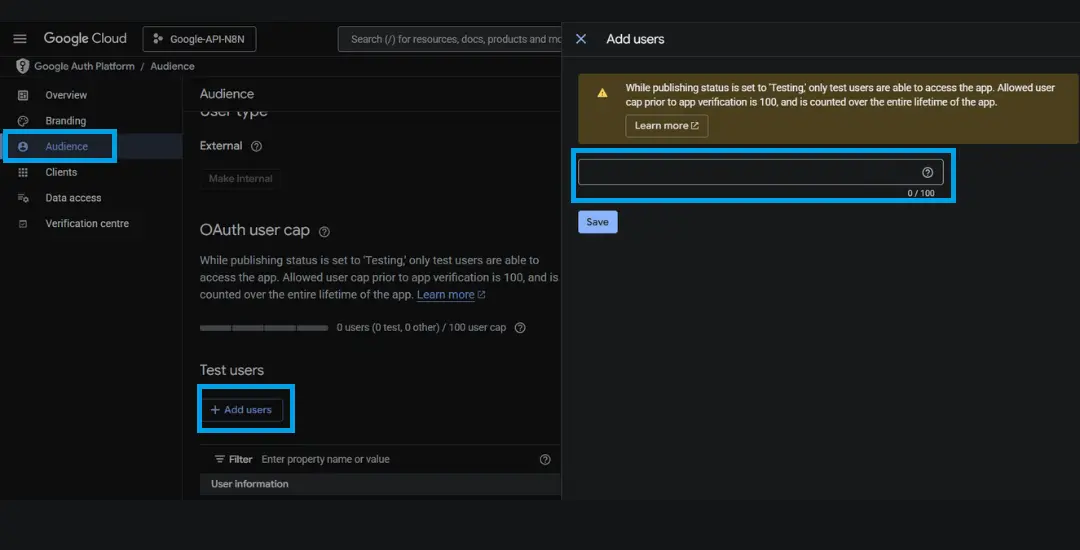
Navigate to “Audience”, in the “Test Users” section, add the Gmail address that you will use for Gmail.
In the “Data access” section, click “Add or Remove Scopes.” and grant access
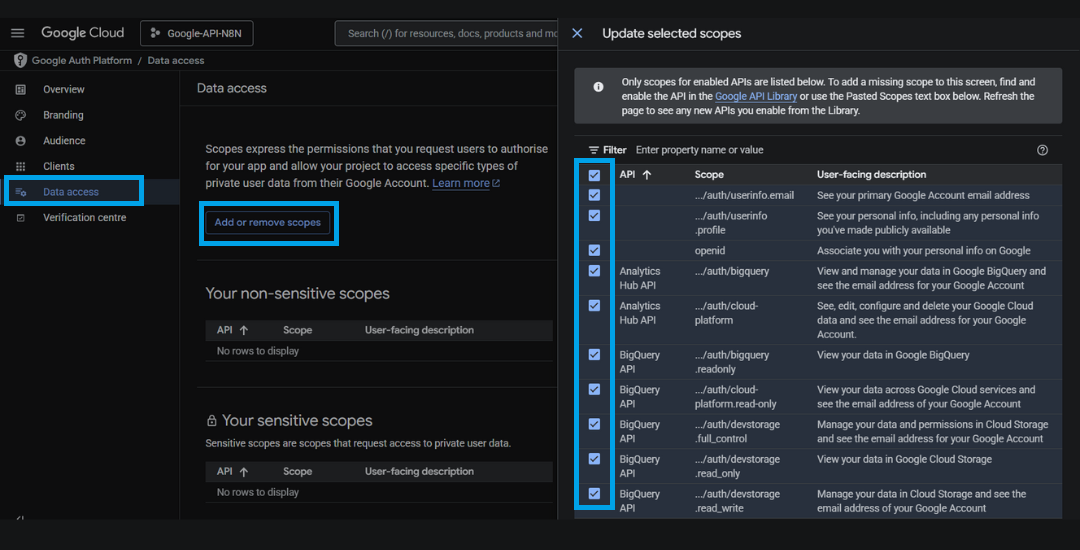
Once the scopes are selected, click “Update”. Click “Save and Continue” to finish setting up the consent screen.
Step 4: Set Up OAuth2 Credentials
Go to the “Credentials” section and click “Create Credentials,” then select “OAuth client ID.”
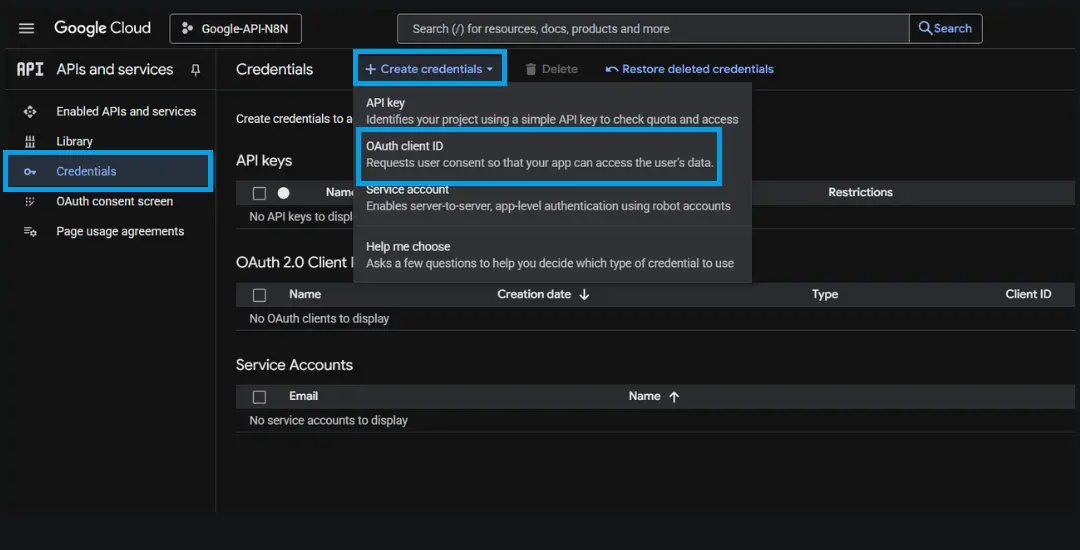
Choose “Web Application” as the application type and provide a descriptive name. The critical step here is adding the OAuth redirect URL from your n8n instance, you’ll find this in the credentials setup page within n8n.
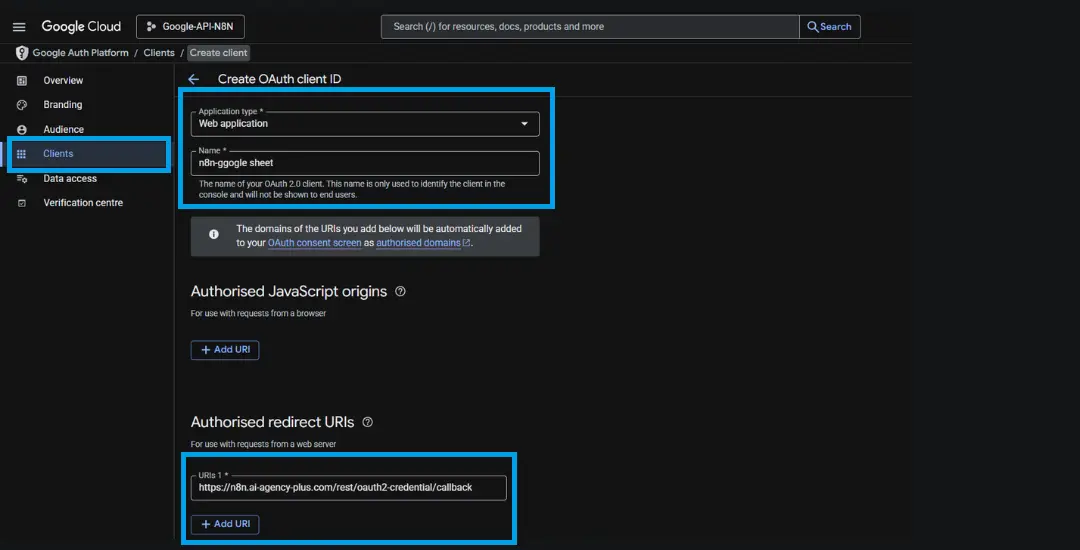
Copy this URL exactly and paste it into the “Authorized redirect URIs” field. Save your Client ID and Client Secret securely for the next step.
Once the URI is added, click “Create.” Google will now generate a **Client ID** and **Client Secret**.
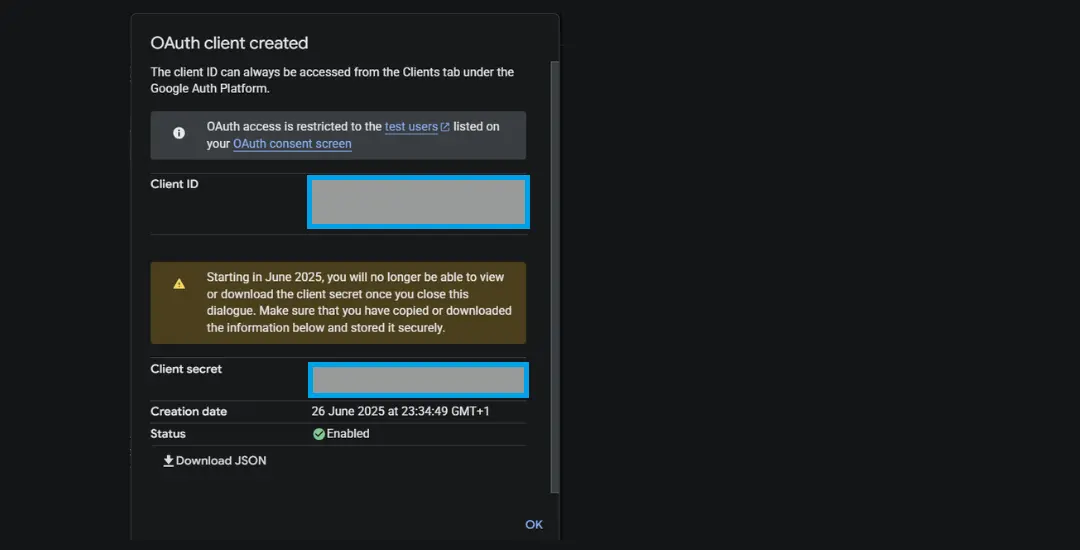
Save these two values securely, they are required in the next step to connect n8n with your Google account.
Step 5: Connect Gmail in n8n
Within your self-hosted n8n interface, navigate to the “Credentials” section and select “Create New.”
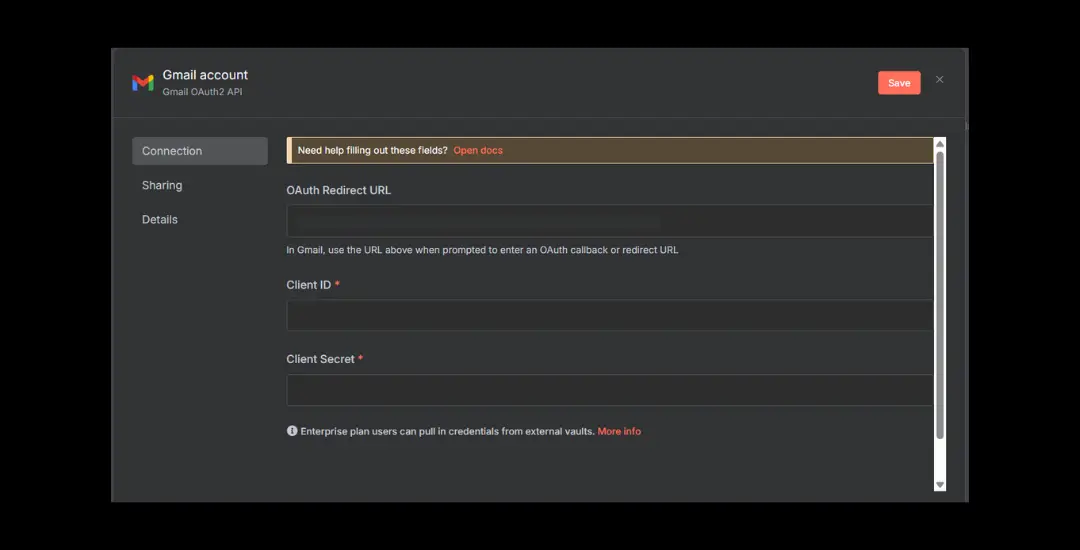
Choose “Gmail OAuth2 API” as the credential type and enter the Client ID and Client Secret from your Google Cloud setup. Click “Connect” or “Sign in with Google” to initiate the authentication flow. You may see a warning about an unverified app, this is normal for internal automation and you can proceed safely.
Step 6: Test the Integration with a Workflow
Create a new workflow starting with a “Manual Trigger” node, then add a “Gmail” node configured for your desired operation (such as “Send Email” or “Get Messages”). Select your newly created credential, configure the necessary parameters, and execute the node to test the connection. Verify the results in your Gmail account to confirm successful.
Troubleshooting and Best Practices
If you encounter authentication issues, verify that your OAuth redirect URI matches exactly between Google Cloud and n8n. Refresh your browser or the credentials tab if connections don’t appear properly.
For scope or permission errors, revisit your OAuth consent screen settings and ensure all necessary permissions are granted. Always keep your credentials secure and never share them publicly.
Advanced Automation Possibilities With n8n Workflow Automation
Once your basic integration is working, explore these powerful automation scenarios:
Customer Service Automation:
- Auto-categorize support emails and route them to appropriate team members
- Send acknowledgment emails with ticket numbers automatically
- Escalate urgent emails based on keywords or sender priority
Sales and Marketing Workflows:
- Trigger lead scoring updates when prospects engage with emails
- Automatically add email subscribers to marketing campaigns
- Send personalized follow-ups based on customer behavior
Data Management and Reporting:
- Extract email metrics and compile them into regular reports
- Sync email data with business intelligence tools
- Create automated backups of important email communications
Transform Your Business with Gmail Automation and Beyond
By connecting Gmail to your self-hosted n8n instance, you’re joining the millions of users who have discovered the power of email automation. With 376.4 billion emails expected to be sent daily in 2025 and Gmail handling a significant portion of this volume, automation isn’t just convenient, it’s essential for staying competitive and productive.
Start with simple automations like email sorting and auto-responses, then gradually build more sophisticated workflows that integrate your entire business ecosystem. The time you save can be reinvested in strategic activities that drive real business value.
Take Your Automation Journey Further
While this guide gets you started with Gmail automation, it’s just the beginning of what’s possible with AI and automation for your business. At AI Agency Plus, we help businesses unlock the full potential of intelligent automation across their entire operation, from customer service and lead generation to data analysis and workflow optimization.
Want to discover what AI and automation can do for your specific business? Book a free discovery call with our team. We’ll analyze your current processes, identify automation opportunities, and show you how to implement solutions that can save hours of work while increasing accuracy and efficiency.
Don’t let manual processes hold your business back, let’s explore how AI and automation can accelerate your growth and productivity.