
With over 1.8 billion users worldwide relying on Google Calendar for scheduling and 500 million calendar events created daily, calendar automation has become essential for modern productivity. The average professional spends 23% of their workweek managing meetings and calendar coordination, time that could be better invested in high-value work.
This tutorial will show you how to connect Google Calendar to your self-hosted n8n instance without any coding skills required. You’ll learn to automate event creation, sync calendars across platforms, and build intelligent scheduling workflows that save hours of manual work each week. Let’s transform your calendar into a productivity powerhouse that works for you, not against you.
/
What You Can Achieve by Connecting Google Calendar to n8n
Powerful Calendar Automation Capabilities
Integrating Google Calendar with n8n unlocks transformative workflow automation possibilities:
Event Management:
- Automatically create calendar events from form submissions or emails
- Sync / update events across multiple calendars and platforms
- Set up intelligent meeting scheduling based on availability
- Generate automatic reminders and follow-up tasks
Business Process Integration:
- Convert calendar events into project tasks in tools like Trello or Asana
- Automatically log meeting details in CRM systems
- Trigger notifications in Slack or Teams for upcoming events
- Create time-tracking entries based on calendar events
Advanced Workflows:
- Build AI-powered meeting assistants that parse email requests and create events
- Automate recurring event creation with dynamic parameters
- Integrate with 400+ other applications through n8n’s extensive library
- Generate reports and analytics from calendar data
Real-World Business Benefits
Organizations implementing Google Calendar automation typically experience:
- 40% reduction in time spent on calendar management
- Improved meeting efficiency through automated preparation workflows
- Enhanced team coordination via synchronized scheduling systems
- Better work-life balance through automated time-blocking and availability management
Prerequisites & Preparation Google Calendar Integration with n8n
Before diving into the integration process using n8n, ensure you have:
- An active self-hosted n8n instance
- Google account and basic familiarity with Google Cloud Console console for APIs access
- Administrative access to both n8n and your Google account
Step 1: Create a Google Cloud Project
Navigate to the Google Cloud Console and establish a dedicated project for your n8n integration. Click the project dropdown in the top navigation bar, select “New Project,” and provide a descriptive name such as “n8n Google Calendar Integration.” Ensure this new project is selected as your active workspace before proceeding to the next step.
Step 2: Enable the Google Calendar API
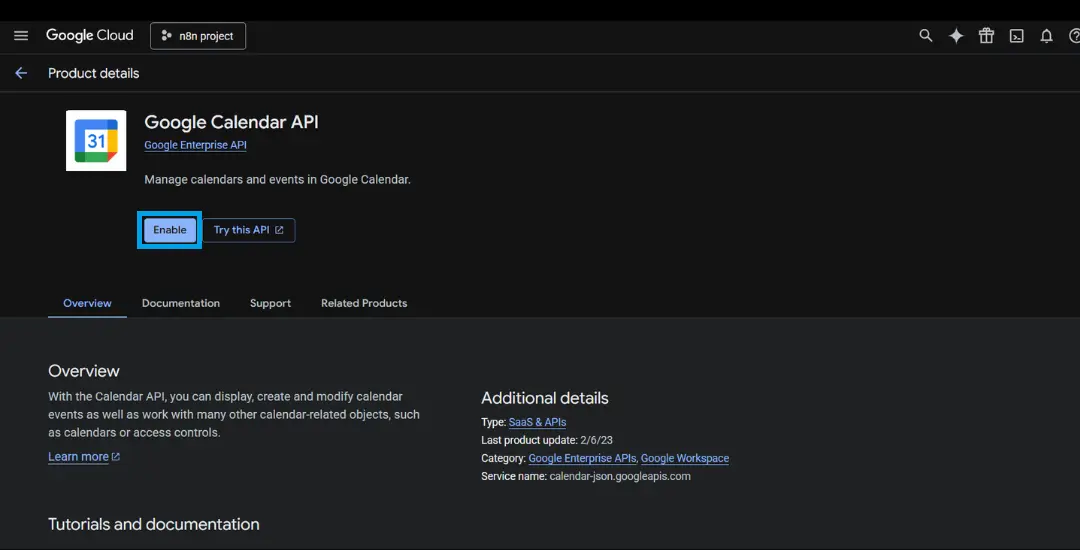
Within your active Google Cloud project, access the API Library through the left navigation menu. Search for “Google Calendar API” in the library, select it from the results, and click “Enable” to activate it for your project. This step grants your n8n workflows the necessary permissions to interact with Google Calendar’s services and manage calendar data.
Step 3: Configure the OAuth Consent Screen
Navigate to “OAuth Consent Screen” in the APIs & Services section.
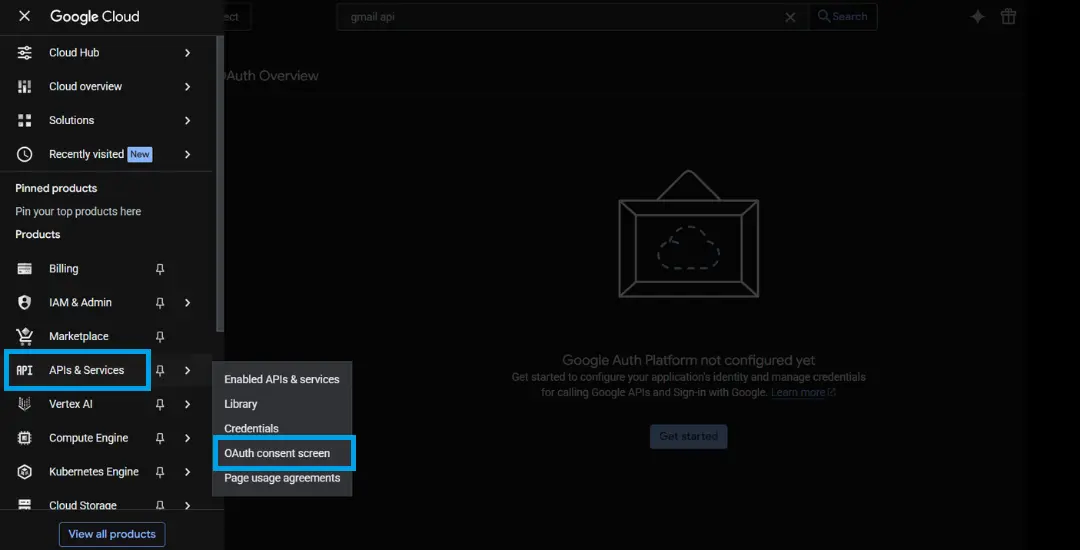
Select “Get Started” to continue OAuth setup.
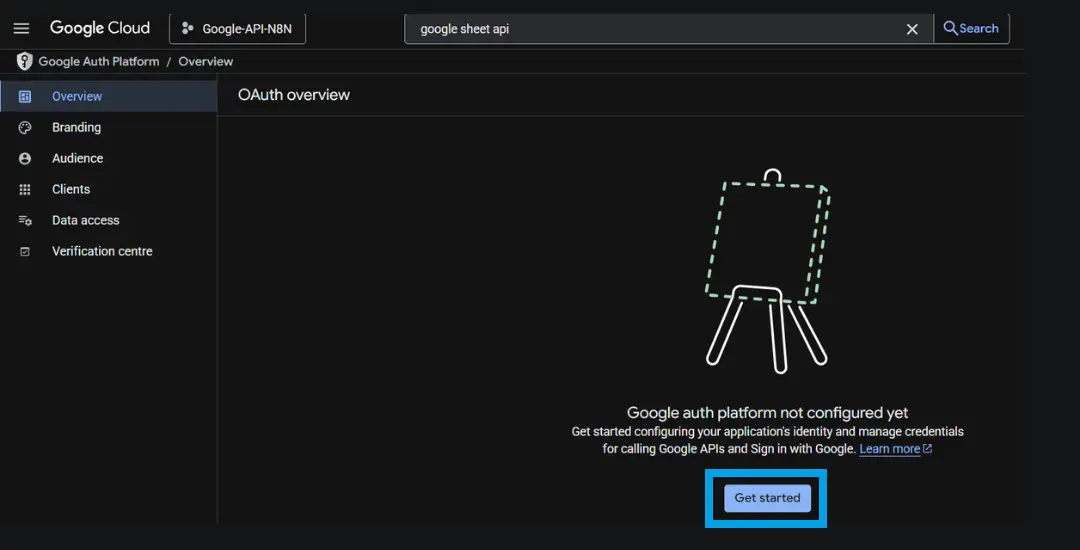
Select “External” complete all required fields including your application name (e.g., “n8n Calendar Integration”), user support email, and developer contact information.
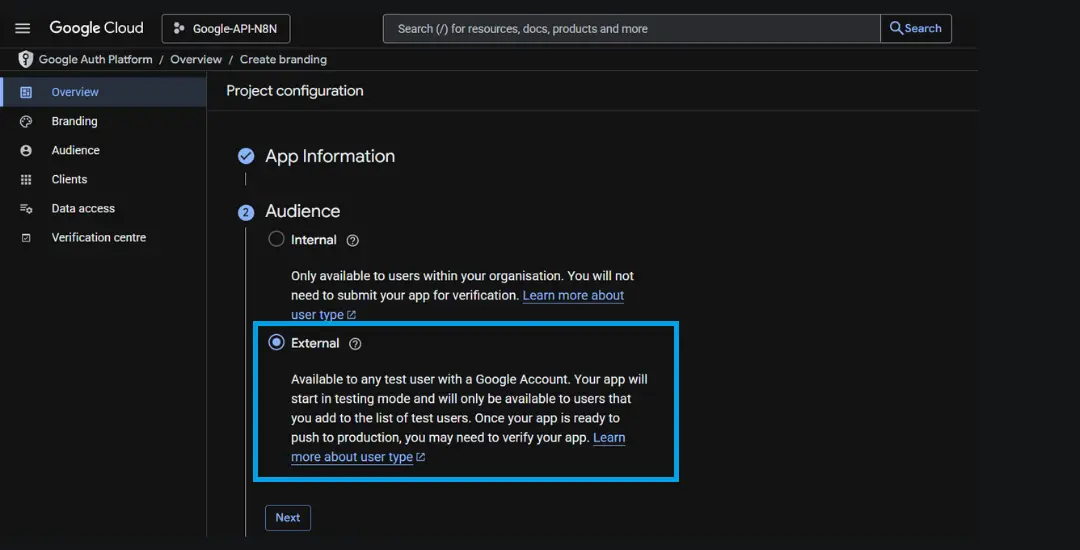
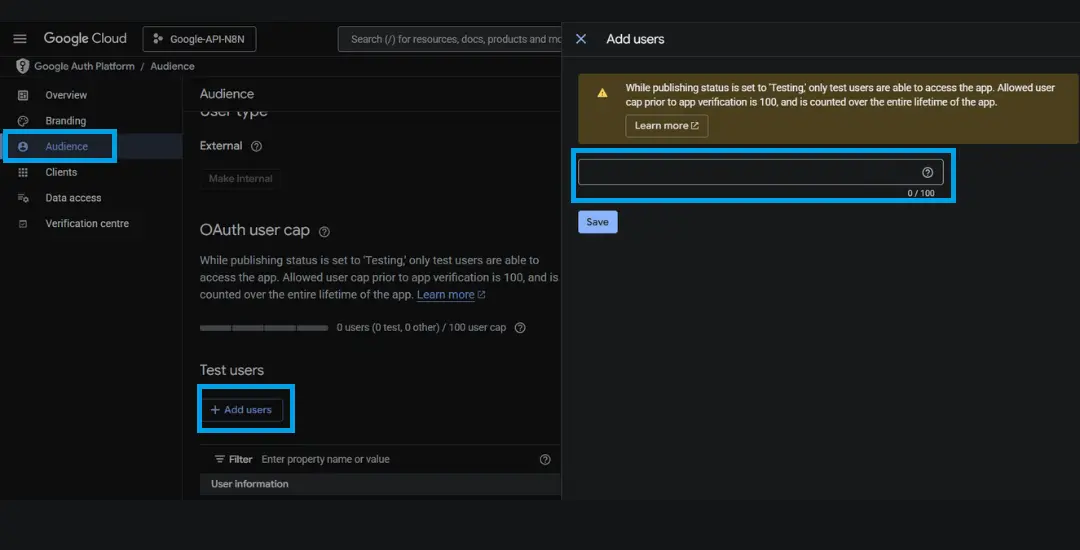
Navigate to “Audience”, in the “Test Users” section. Add your Google account email as a test user to ensure you can authenticate during the setup process.
In the “Data access” section, click “Add or Remove Scopes.” and grant access
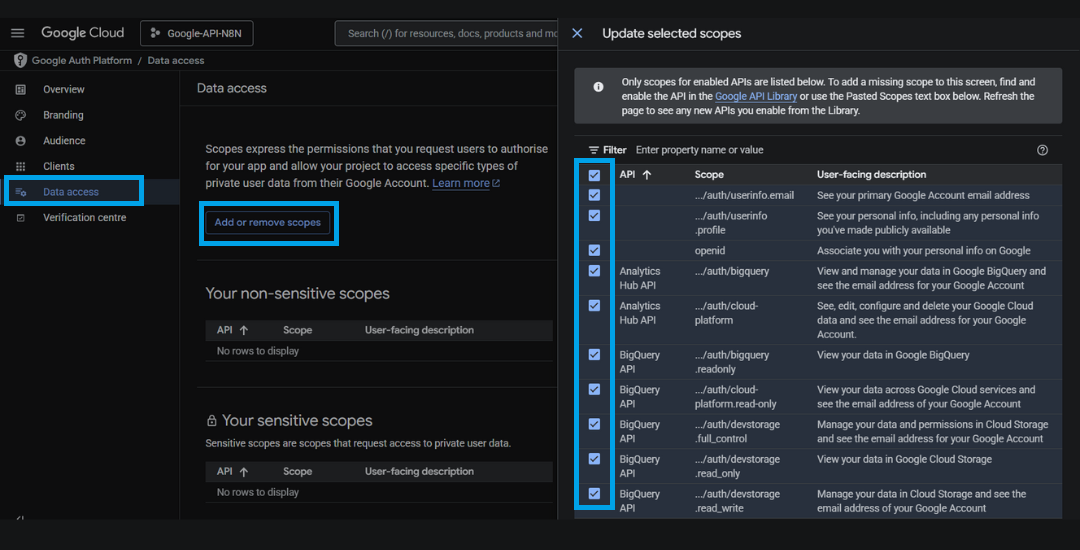
Once the scopes are selected, click “Update”. Click “Save and Continue” to finish setting up the consent screen.
Step 4: Set Up OAuth2 Credentials
Go to the “Credentials” section and click “Create Credentials,” then select “OAuth client ID.”
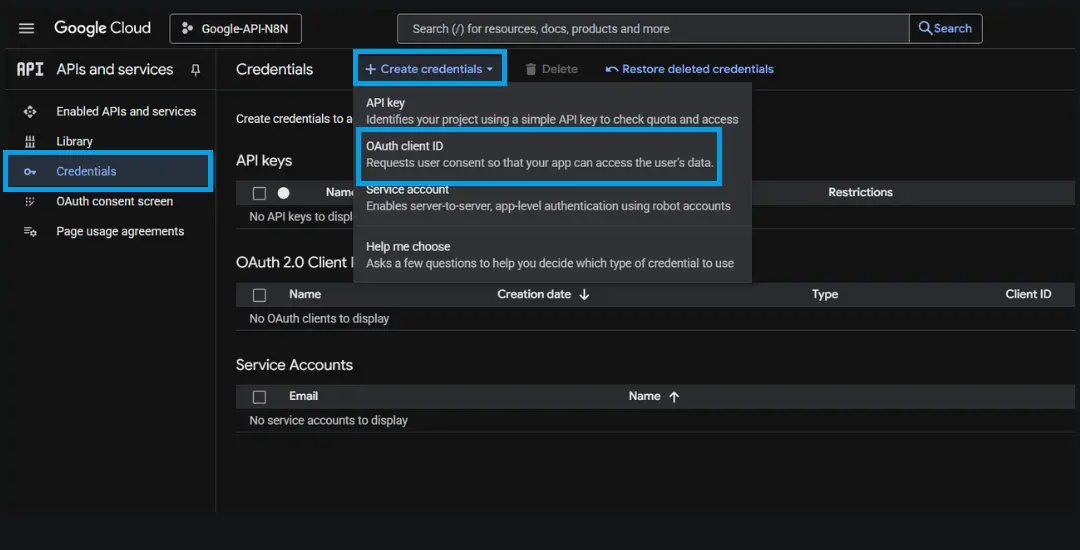
Choose “Web Application” as the application type and provide a descriptive name for your OAuth client3. The critical step here involves adding the OAuth redirect URL from your n8n instance, copy this URL from the credentials setup page within n8n and paste it into the “Authorized redirect URIs” field.
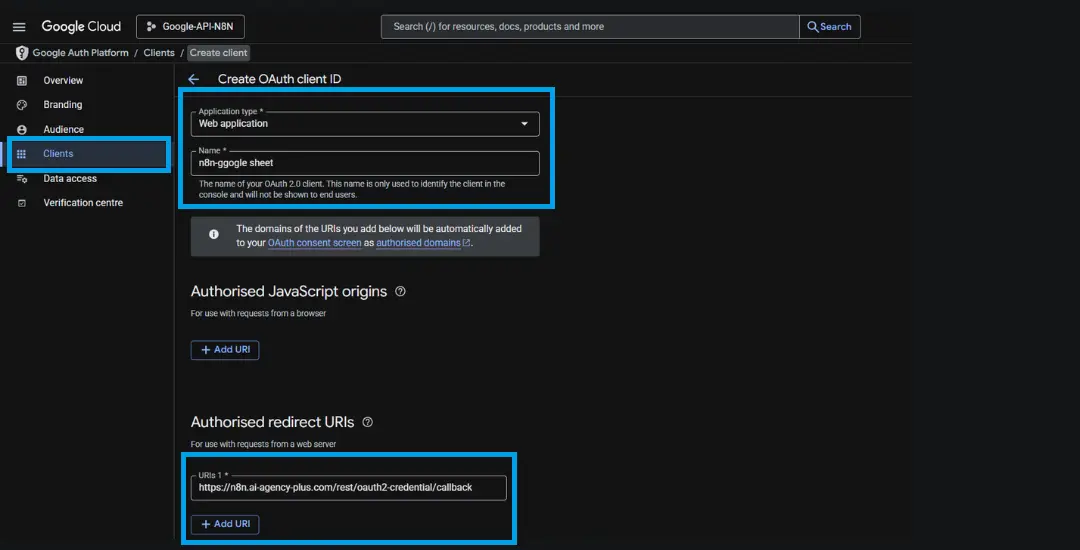
Once the URI is added, click “Create.” Google will now generate a Client ID and Client Secret.
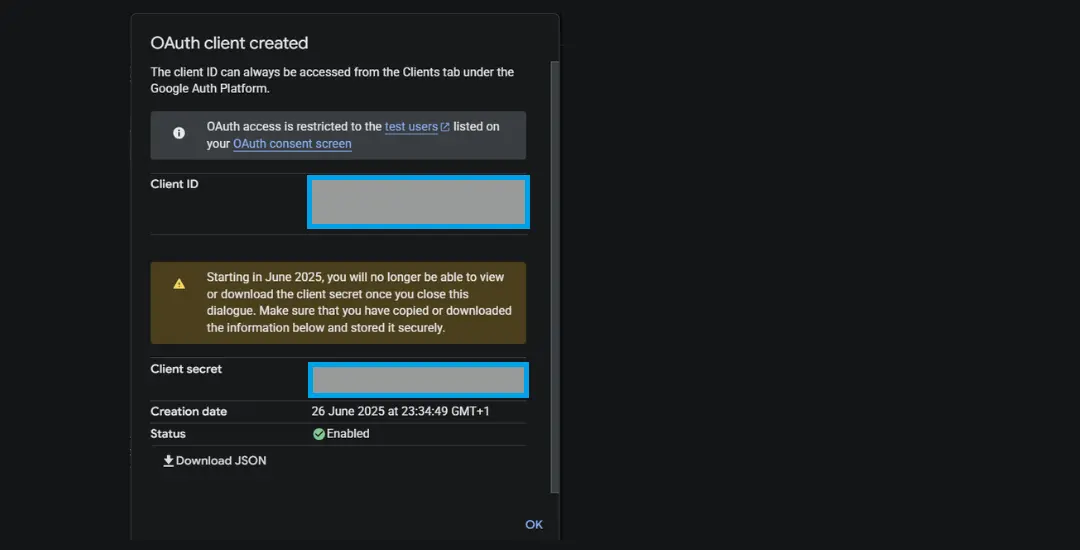
Save these two values securely, they are required in the next step to connect n8n with your Google account.
Step 5: Connect Google Calendar in n8n
Within your self-hosted n8n interface, navigate to the “Credentials” section and select “Create New.” Choose “Google Calendar OAuth2 API” as the credential type and enter the Client ID and Client Secret from your Google Cloud setup.
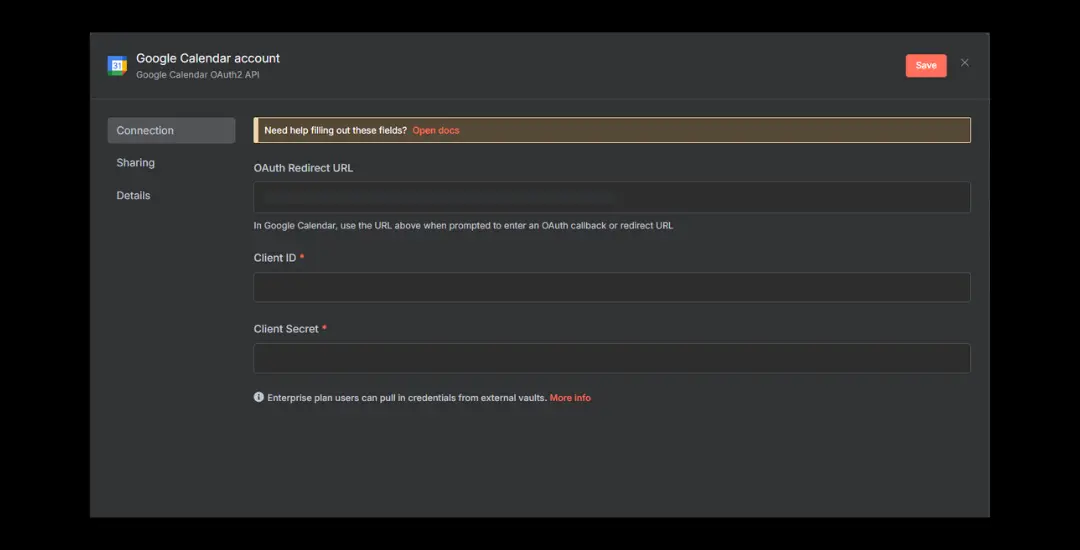
Click “Connect” or “Sign in with Google” to initiate the authentication flow. You may encounter a warning about an unverified app this is normal for internal purposes and you can proceed safely by clicking “Advanced” and then “Go to [your app name].”
Step 6: Test the Integration with a Workflow
Create a new workflow in n8n starting with a “Manual Trigger” node, then add a “Google Calendar” node configured for your desired operation such as “Create Event” or “Get Events”. Select your newly created credential, configure the necessary parameters (calendar ID, event details, date ranges), and execute the node to test the connection. Verify the results in your Google Calendar to confirm successful integration and data synchronization.
Advanced Workflow Optimization Possibilities
Once your basic integration is operational, explore these powerful workflow optimization scenarios:
Meeting Management Workflows:
- Automatically create calendar events from chat messages using AI parsing
- Generate meeting preparation tasks and send agenda emails
- Set up post-meeting follow-up workflows with action items
Productivity Enhancement Systems:
- Build time-blocking automations that protect focus time
- Create availability checking systems for external booking requests
- Automate recurring event creation with dynamic scheduling
Business Intelligence Integration:
- Extract calendar data for productivity analytics and reporting
- Sync calendar events with time-tracking and billing systems
- Generate automated insights on meeting patterns and time allocation
Troubleshooting and Best Practices
If you encounter authentication issues, verify that your OAuth redirect URI matches exactly between Google Cloud and n8n configurations.
For scope or permission errors, revisit your OAuth consent screen settings and ensure all necessary Calendar API permissions are granted.
Always maintain credential security by never sharing Client IDs or Client Secrets publicly, and regularly review access permissions for optimal security.
Transform Your Calendar Management with Automation and Beyond
By connecting Google Calendar to your self-hosted n8n instance, you’re joining the top professionals who have discovered the power of calendar automation. With 500 million calendar events created daily and the average professional spending 6 hours weekly on calendar management, automation isn’t just convenient it’s essential for maintaining competitive productivity levels.
Start with simple workflows like event creation and availability checking, then gradually build more sophisticated workflows that integrate your entire productivity ecosystem. The time you save can be reinvested in strategic activities that drive real business value and personal growth.
Take Your Automation Journey Further
While this guide establishes your Google Calendar integration foundation, it represents just the beginning of what’s possible with AI and automation for your business. At AI Agency Plus, we help businesses unlock the full potential of intelligent automation across their entire operation from calendar management and meeting coordination to comprehensive workflow optimization and productivity enhancement.
Want to discover what AI and automation can do for your specific business? Book a free discovery call with our n8n experts. We’ll analyze your current processes, identify automation opportunities, and show you how to implement solutions that can save hours of work while increasing accuracy and efficiency.
Don’t let manual processes hold your business back let’s explore how AI and automation can accelerate your growth and productivity.